
Why Your Revit Model is So Slow

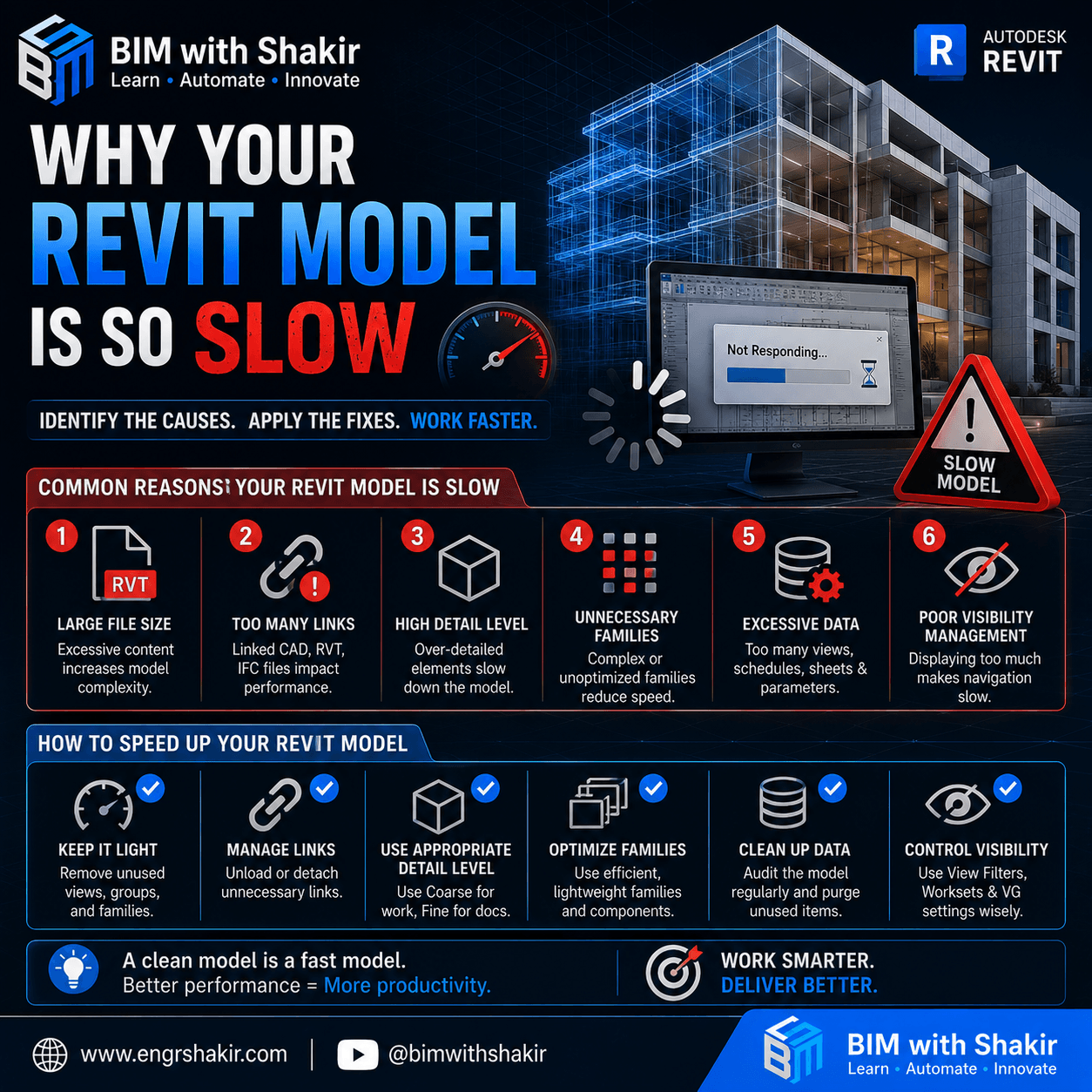
Why Your Revit Model Is So Slow: 15 Proven Ways to Speed Up Revit Performance
Have you ever opened a Revit project only to wait several minutes before you could start working? Or perhaps synchronization takes forever, switching views feels sluggish, and even simple modeling tasks seem to lag.
If so, you’re not alone.
As BIM projects become larger and more complex, Revit performance naturally declines—but in most cases, the software isn’t the problem. A slow Revit model is usually the result of poor model management, inefficient workflows, or unoptimized project content.
The good news is that most performance issues are preventable.
In this comprehensive guide, you’ll learn why Revit models become slow, how to diagnose performance bottlenecks, and the best practices used by experienced BIM professionals to keep projects running smoothly.
Why Revit Performance Matters
Performance isn’t just about convenience—it directly affects productivity.
Every extra second spent waiting for a model to regenerate, synchronize, or load accumulates throughout the day.
On large BIM projects, slow performance can result in:
- Lost productivity
- Delayed project deadlines
- Poor team collaboration
- Longer synchronization times
- Increased model corruption risks
- More user frustration
- Higher project costs
A well-optimized Revit model benefits everyone on the project team.
Signs Your Revit Model Needs Optimization
If you experience any of the following, your model likely needs maintenance:
- The project takes several minutes to open.
- Synchronize with Central is very slow.
- Views regenerate slowly.
- Switching between views causes lag.
- Section boxes are sluggish.
- Printing sheets takes a long time.
- Families respond slowly.
- Saving the project becomes increasingly slower.
These are warning signs that your BIM model is becoming inefficient.
1. Your Project File Is Too Large
One of the biggest reasons for slow performance is excessive file size.
Large projects often contain:
- Unused families
- Duplicate materials
- Imported CAD files
- Temporary views
- Obsolete sheets
- Redundant schedules
All of these increase the amount of data Revit must process.
Solution
Regularly remove unnecessary content by:
- Purging unused families
- Deleting temporary views
- Removing unused schedules
- Cleaning up materials
- Eliminating duplicate content
A lean project loads significantly faster.
2. Heavy or Poorly Built Families
Families are one of the most common performance bottlenecks.
Downloaded manufacturer families often contain:
- Excessive geometry
- Thousands of unnecessary lines
- Complex nested families
- Large image textures
- Imported CAD content
- Unnecessary parameters
These dramatically increase file size.
Best Practices
Use lightweight families whenever possible.
Optimize by:
- Removing unnecessary geometry
- Reducing nested components
- Simplifying symbolic lines
- Removing unused parameters
- Creating multiple Levels of Detail (LOD)
Good family design improves performance across the entire project.
3. Too Many Linked Models
Linked Revit files are extremely useful, but too many links increase memory usage and loading times.
Examples include:
- Architectural models
- Structural models
- MEP models
- IFC files
- Point clouds
- CAD references
Every linked file requires processing.
Recommendation
Only load the links you actually need.
Unload unnecessary links during daily modeling tasks.
4. Imported CAD Files Instead of Linked CAD
Importing DWG files embeds them permanently into your project.
This often results in:
- Larger file sizes
- Increased regeneration time
- More graphics processing
- Slower navigation
Best Practice
Always use Link CAD whenever possible.
After modeling from CAD backgrounds, remove them if they are no longer required.
5. Too Many Views and Sheets
Every view stores graphical information.
Large projects may contain hundreds of:
- Floor plans
- Sections
- Elevations
- Drafting views
- Legends
- 3D views
- Schedules
- Sheets
Unused views consume resources unnecessarily.
Clean Up Regularly
Delete:
- Duplicate views
- Temporary working views
- Obsolete sheets
- Test schedules
Keeping your Browser organized also improves navigation.
6. Inefficient Visibility/Graphics Settings
Displaying unnecessary categories forces Revit to process additional geometry.
Examples include:
- Furniture
- Site elements
- Planting
- Imports
- Annotation
- Analytical models
Improve Performance
Create View Templates that only display information required for each discipline.
Less visible content equals faster views.
7. Too Many Revit Warnings
Warnings are more than visual reminders.
Thousands of unresolved warnings can negatively impact model quality and performance.
Common warnings include:
- Duplicate instances
- Room separation issues
- Overlapping walls
- Duplicate marks
- Unjoined geometry
Review Warnings Weekly
Go to:
Manage → Review Warnings
Resolve important issues before they accumulate.
8. Modeling Everything at Maximum Detail
Many teams create fabrication-level models during conceptual design.
This dramatically increases project complexity.
Follow Proper LOD Standards
- LOD 100 – Concept
- LOD 200 – Schematic
- LOD 300 – Design Development
- LOD 350 – Coordination
- LOD 400 – Fabrication
- LOD 500 – As-Built
Model only what is necessary for the current phase.
9. Worksharing Problems
Poor worksharing practices slow down every team member.
Common mistakes include:
- Working in the Central Model
- Leaving worksets open
- Borrowing too many elements
- Not relinquishing ownership
- Synchronizing excessively
Best Practices
- Always work from Local Files.
- Synchronize every 30–60 minutes.
- Close unused worksets.
- Relinquish borrowed elements before leaving.
10. Unused Materials and Object Styles
Projects accumulate unnecessary resources over time.
Examples include:
- Duplicate materials
- Fill patterns
- Line styles
- Object styles
- Imported settings
Solution
Use Purge Unused regularly.
A cleaner project is easier to manage.
11. Excessive Groups
Groups are useful but can become problematic.
Large projects with hundreds of groups increase regeneration time.
Instead of excessive grouping:
- Use families where appropriate.
- Keep groups simple.
- Remove unused groups.
12. Too Many Design Options
Design Options increase model complexity.
If old options are no longer needed:
- Delete obsolete options.
- Keep only active alternatives.
This reduces unnecessary processing.
13. Hardware Limitations
Although model management is usually the biggest issue, hardware still matters.
For smooth Revit performance, consider:
- SSD storage
- 32 GB or more RAM
- Modern multi-core processor
- Dedicated graphics card
- Stable network connection
Even the best workstation cannot compensate for a poorly managed BIM model.
14. Ignoring Model Maintenance
Many BIM teams never schedule maintenance.
Instead, they wait until the project becomes unusable.
Create a recurring maintenance routine.
Weekly Revit Maintenance Checklist
✔ Purge Unused
✔ Audit the Project
✔ Remove obsolete views
✔ Delete unnecessary sheets
✔ Clean imported CAD files
✔ Review warnings
✔ Optimize families
✔ Review linked files
✔ Compress textures
✔ Verify worksets
✔ Synchronize Central
✔ Backup the project
Fifteen minutes of maintenance each week can save hours of lost productivity.
15. Poor BIM Standards
Without BIM standards, projects quickly become disorganized.
Develop office standards for:
- Naming conventions
- Family creation
- View Templates
- Worksets
- Shared Parameters
- Levels of Detail
- Model coordination
Consistency leads to better performance.
Best Practices for High-Performance Revit Models
Professional BIM teams follow these habits:
- Keep families lightweight.
- Avoid unnecessary imports.
- Use linked CAD instead of imported CAD.
- Delete obsolete content regularly.
- Audit projects periodically.
- Purge unused elements.
- Resolve warnings consistently.
- Use View Templates.
- Follow BIM execution plans.
- Optimize worksharing.
Small improvements create major productivity gains over time.
Common Myths About Slow Revit Models
“Revit is just slow.”
False.
Most performance problems result from poor BIM practices rather than the software itself.
“Buying a better computer fixes everything.”
Better hardware helps, but inefficient models remain slow regardless of workstation specifications.
“Large projects have to be slow.”
Not true.
Many hospitals, airports, and skyscrapers containing millions of elements perform efficiently because they follow proper BIM standards.
Frequently Asked Questions
Why does Revit become slower over time?
As projects grow, unused content, warnings, heavy families, linked files, and poor model management gradually reduce performance.
Does Purge Unused improve speed?
Yes.
Removing unnecessary content reduces file size and improves responsiveness.
Should I import or link CAD files?
Link whenever possible.
Imported CAD files permanently increase project size.
How often should I audit a Revit project?
Before major project milestones and whenever significant performance issues appear.
What is the biggest cause of slow Revit models?
Heavy families, poor model management, excessive linked files, and lack of regular maintenance.
Final Thoughts
A fast Revit model doesn’t happen by accident—it is the result of disciplined BIM management and consistent maintenance.
By optimizing families, cleaning unnecessary content, managing linked files wisely, reducing excessive detail, and following BIM best practices, you can dramatically improve project performance and team productivity.
Remember:
A fast Revit model is a productive Revit model.
Invest a few minutes each week in maintaining your project, and you’ll save countless hours throughout the life of your BIM project.
About BIM with Shakir
BIM with Shakir is dedicated to helping engineers, architects, and BIM professionals improve their Revit skills through practical tutorials, workflow optimization, BIM automation, and industry best practices.
Whether you’re a beginner or an experienced BIM Coordinator, our goal is to help you work smarter, build better models, and advance your career in the AEC industry.
🌐 Website: https://www.engrshakir.com
▶ YouTube: https://www.youtube.com/@bimwithshakir
Follow BIM with Shakir for practical Revit tutorials, BIM workflows, productivity tips, and digital construction insights.
SEO Meta Title
Why Your Revit Model Is So Slow: 15 Proven Tips to Improve Revit Performance | BIM with Shakir
SEO Meta Description
Is your Revit model slow? Learn the top 15 reasons Revit performance declines and discover proven optimization techniques to speed up BIM workflows, reduce file size, and improve productivity.
Focus Keywords
- Slow Revit Model
- Revit Performance
- Revit Optimization
- Revit Speed
- BIM Performance
- Autodesk Revit Tips
- Revit File Size
- Revit Families
- Revit Productivity
- Purge Unused
- Audit Revit Model
- BIM Workflow
- Revit Best Practices
- BIM Coordination
- BIM with Shakir
“`