
Why Your Revit Model Is So Slow? Common Causes & Performance Optimization Tips

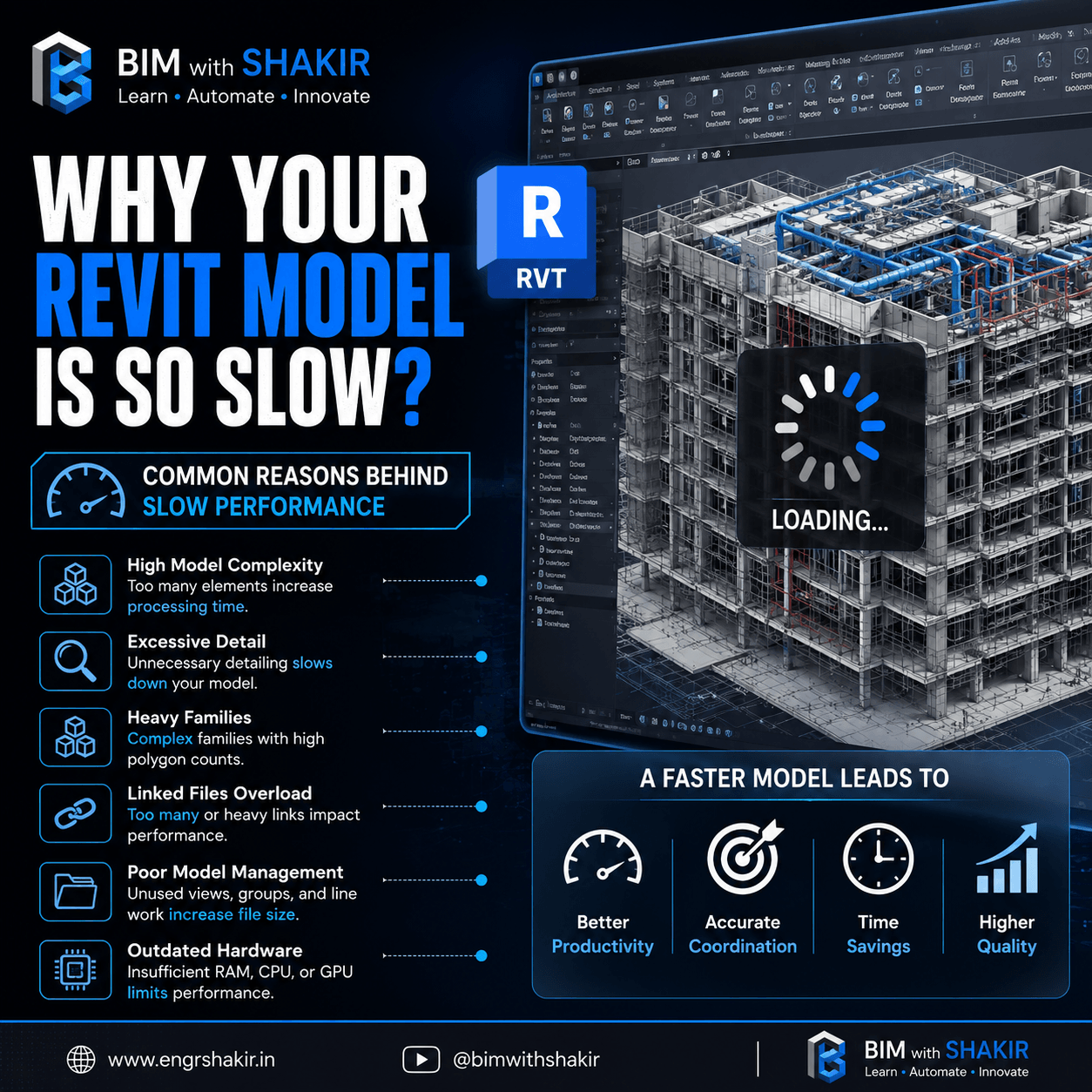
Is your Revit model taking forever to open, navigate, synchronize, or regenerate?
The problem may not always be your computer. In many cases, the Revit model itself is the reason behind slow performance.
As BIM projects become larger and more detailed, model performance can become a serious challenge. Large numbers of elements, complex families, unnecessary geometry, linked models, poorly managed views, and insufficient hardware can all contribute to a sluggish Revit workflow.
The good news is that many performance problems can be identified and improved through a systematic Revit model performance audit.
Why Is Your Revit Model So Slow?
A slow Revit model is rarely caused by one single factor. Performance is usually the result of multiple elements working together.
Some of the most common causes include:
- High model complexity
- Excessive geometric detail
- Heavy or poorly optimized families
- Too many linked models
- Poor model management
- Large and inefficient views
- Unnecessary model elements
- Insufficient hardware resources
Understanding these factors is the first step toward building a faster and more efficient BIM model.
1. High Model Complexity
One of the biggest reasons a Revit model becomes slow is simply model complexity.
As the number of elements increases, Revit has more information to process when displaying views, calculating geometry, regenerating the model, and performing various commands.
A large project containing thousands or millions of elements can naturally require more processing power than a small model.
What Can Increase Model Complexity?
- Large numbers of model elements
- Highly detailed MEP systems
- Excessive architectural detailing
- Large numbers of annotations
- Overly detailed structural components
- Unnecessary 3D geometry
Practical approach: Model only the level of information and geometry required for the project’s intended use.
2. Excessive Detail and Over-Modeling
More detail does not automatically mean a better BIM model.
One common mistake is over-modeling—creating extremely detailed geometry that provides little or no practical value to the project.
For example, modeling tiny components, hidden construction details, or decorative geometry that will never be used for coordination, documentation, fabrication, or analysis can unnecessarily increase model complexity.
Before adding detailed geometry, ask:
- Does this geometry serve a project requirement?
- Will it be used for coordination?
- Is it required for documentation?
- Does it need to be modeled in 3D?
- Could a simpler representation provide the same information?
Good BIM modeling is not about maximum detail. It is about the right level of detail for the project’s requirements.
3. Heavy and Complex Families
Families are another major factor that can affect Revit performance.
A single poorly optimized family may not appear to cause a noticeable problem. However, placing that family hundreds or thousands of times can significantly increase the amount of geometry Revit has to process.
Common Family Problems
- Excessive 3D geometry
- High polygon counts
- Nested families used unnecessarily
- Large imported CAD geometry
- Complex parametric formulas
- Too many visibility conditions
- Unnecessary detailed components
How to Improve Families
Review frequently used families and simplify them wherever possible.
Consider using different levels of geometry depending on the view or project requirement. Avoid importing unnecessarily detailed manufacturer models when a simpler BIM representation is sufficient.
A lightweight family used 1,000 times is often better than an extremely detailed family used 1,000 times.
4. Too Many or Heavy Linked Files
Linked models are essential for multidisciplinary BIM coordination, but poorly managed links can contribute to performance problems.
A project may contain architectural, structural, mechanical, electrical, plumbing, fire protection, and other linked models. If these links are large or unnecessarily complex, they can increase the amount of information Revit needs to process.
Things to Review
- Number of linked Revit models
- Size and complexity of linked models
- Whether every link is actually required
- Link visibility settings
- Imported CAD files
- Unnecessary linked content
Keep linked models organized and load only the information required for your current workflow whenever practical.
5. Poor Model Management
Model organization has a direct impact on BIM workflow efficiency.
Over time, projects can accumulate unused views, duplicated content, unnecessary groups, imported files, old design elements, and other content that is no longer required.
Examples include:
- Unused views
- Unnecessary groups
- Old design options
- Unused imported CAD files
- Duplicate or unnecessary families
- Excessive view templates
- Unnecessary detail components
Regular model maintenance can help keep the project organized and easier to manage.
6. Views Can Also Affect Performance
Sometimes the model itself is not the only problem. A particular view can be slow because it is displaying a very large amount of information.
Views containing large numbers of visible elements, complex geometry, detailed links, and extensive annotations can require more processing.
Try Reviewing:
- 3D views
- Coordination views
- Large floor plans
- Detailed sections
- Views with many linked models
- Views with extensive annotations
Use appropriate view settings, visibility controls, and detail levels to display only the information required for the task.
7. Hardware Still Matters
Although the model itself is often a major factor, hardware can also limit Revit performance.
Important hardware considerations include:
- CPU: Important for many Revit operations and calculations.
- RAM: Large projects can require substantial memory.
- GPU: Important for graphics and viewport performance.
- Storage: Fast SSD storage can improve file loading and general system responsiveness.
If the model has already been optimized and performance is still poor, hardware may be the next area to investigate.
However, simply upgrading hardware without addressing an inefficient model may not solve the underlying problem.
Model Optimization vs. Hardware Upgrade
A common reaction to a slow Revit model is:
“I need a more powerful computer.”
Sometimes that is true. But before upgrading hardware, it is worth investigating the model itself.
A better approach is:
- Identify where the performance problem occurs.
- Audit model complexity.
- Review heavy families.
- Check linked models.
- Remove unnecessary content.
- Review problematic views.
- Optimize the model.
- Then evaluate whether hardware is still limiting performance.
This approach helps ensure that you are solving the actual bottleneck rather than simply spending money on hardware.
How a Faster Revit Model Improves BIM Workflow
Improving Revit performance is not just about making the software feel faster. It directly affects the productivity of the BIM team.
⚡ Better Productivity
Faster navigation, commands, regeneration, and model interaction allow team members to spend more time modeling and coordinating instead of waiting.
🎯 More Accurate Coordination
A responsive model makes it easier to inspect systems, review conflicts, and coordinate with other disciplines.
⏱ Time Savings
Even small performance improvements can create significant time savings when repeated throughout an entire working day.
📈 Higher Model Quality
A well-managed model is easier to maintain, review, coordinate, and deliver.
Practical Revit Performance Audit Checklist
Before your next major hardware upgrade, use this checklist to review your model:
| Area | What to Check |
|---|---|
| Model Complexity | Large number of elements and unnecessary geometry |
| Families | Heavy geometry, nested families, imported CAD |
| Links | Large or unnecessary linked models |
| Views | Excessive visible elements and detailed views |
| Model Management | Unused content, groups, views, and imported files |
| Detail | Over-modeling and unnecessary geometry |
| Hardware | CPU, RAM, GPU, and storage limitations |
💡 BIM Productivity Tip
Don’t measure BIM quality by how much geometry you can put into a model.
A good BIM model should contain the right information at the right level of detail while remaining practical for the project team to use.
Efficient BIM is a balance between accuracy, information, coordination, and performance.
Why Revit Performance Matters
Revit performance directly affects the daily experience of everyone working with the model.
When teams spend less time waiting for files to open, views to regenerate, commands to complete, or models to synchronize, they have more time available for actual design, engineering, documentation, and coordination.
That is why model performance should be treated as part of BIM management, not simply as an IT problem.
Final Thoughts
A slow Revit model does not always mean you need a new workstation.
Start by looking at the model itself. High complexity, excessive detail, heavy families, linked files, poor model management, and inefficient views can all contribute to poor performance.
By regularly auditing and optimizing your model, you can create a more responsive BIM environment that supports better productivity, coordination, and project delivery.
Build smarter models—not just bigger models.
💬 What Is Making Your Revit Model Slow?
What is the biggest cause of slow Revit performance you have encountered?
Was it a heavy family, too many linked models, excessive detail, a large project, or something else?
Share your experience and Revit performance tips in the comments.
🚀 Follow BIM with Shakir
For more practical Revit, BIM, MEP, HVAC, automation, and productivity tips:
- 🌐 Website: www.engrshakir.in
- ▶️ YouTube: @bimwithshakir
Learn • Automate • Innovate