
10 Revit Features You Never Use (But Should)

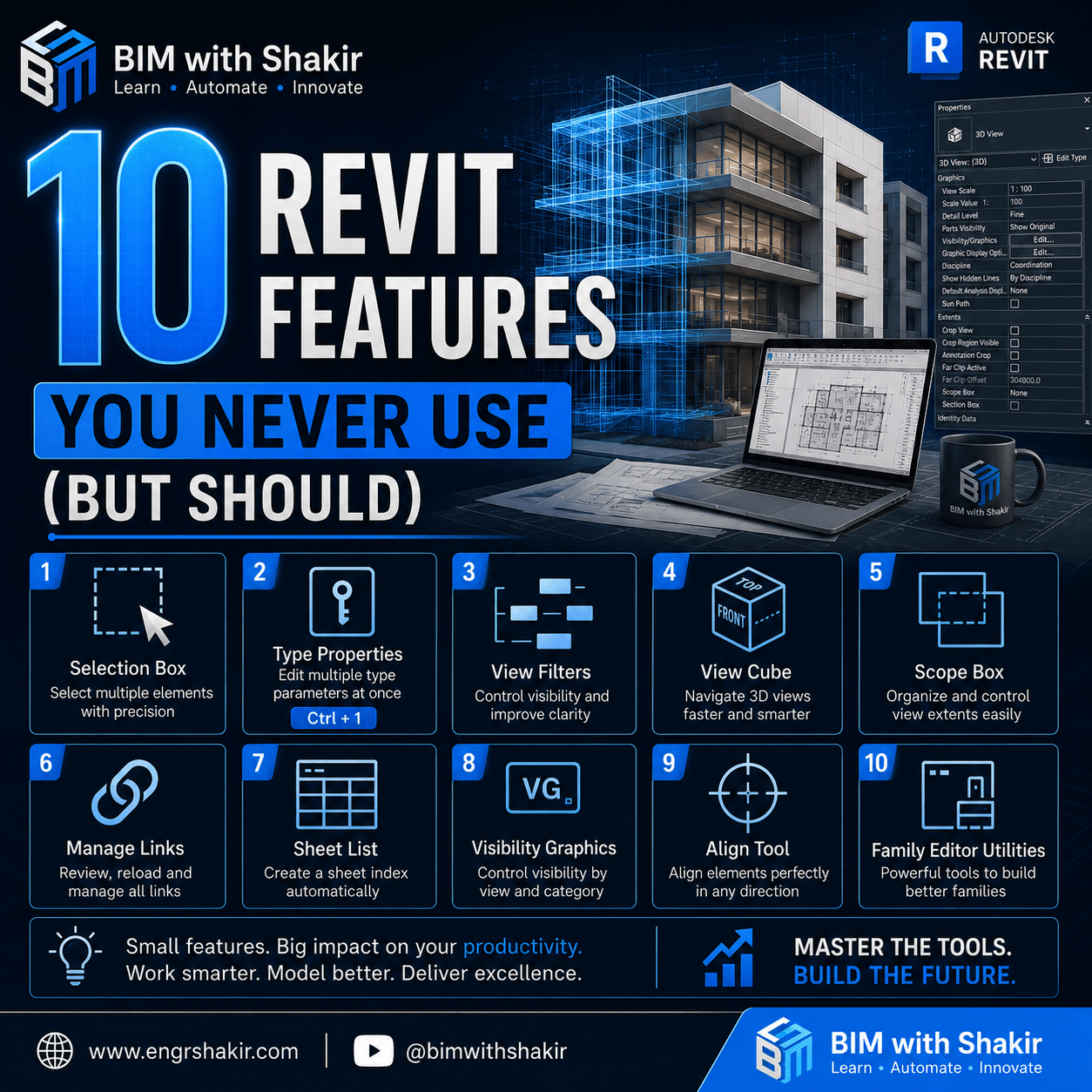
Hidden Tools That Can Transform Your BIM Workflow
If you’ve been using Autodesk Revit for years, you probably have a set of favorite commands that you use every day. Most professionals rely on familiar tools for modeling, documentation, and coordination without exploring the full capabilities of the software.
The truth is that Revit includes dozens of powerful built-in features that many users either overlook or never learn. These hidden tools can dramatically improve your productivity, reduce repetitive work, and make your BIM models cleaner and more organized.
In this article, we’ll explore ten underrated Revit features that every architect, structural engineer, MEP engineer, BIM modeler, and BIM coordinator should start using today.
IN
The difference between an average Revit user and an expert isn’t simply knowing more commands—it’s knowing the right tools for the right task.
Small workflow improvements save minutes every day, and those minutes quickly become hours over the course of a project. Better workflows also lead to:
- Faster modeling
- Cleaner documentation
- Fewer coordina
- Better project consistency
- Improved collaboration among teams
Let’s dive into the features.
1. Selection Box
One of the quickest ways to isolate a specific area of your model is by using the Selection Box feature.
Instead of manually creating a section box every time, simply select the elements you want and choose Selection Box from the Modify tab. Revit automatically creates a 3D view focused only on the selected elements.
Benefits
- Instantly isolate complicated areas
- Easier clash detection
- Better presents
- Faster editing of dense models
Best for: MEP coordination, structural framing, and large architectural projects.
2. Type Properties
Many users edit elements one at a time, but Type Properties allows you to modify every instance of a family type simultaneously.
Yes
Benefits
- Consistent family standards
- Faster project-wide modifications
- Reduced manual editing
Pro Tip: Always duplicate a type before making changes if you don’t want to affect existing elements.
3. View Filters
View Filters are among Revit’s most powerful—and most underused—features.
Instead of manually changing colors or visibility, create rule-based filters that automatically control graphics based on element properties.
For example:
- Highlight fire-rated walls
- Color-code HVAC systems
- Structure display
- Identify worksets visually
Benefits
- Cleaner documentation
- Easier QA/QC
- Bed
- Automaton
4. ViewCube
The ViewCube makes navigating complex 3D models much faster than repeatedly orbiting with the mouse.
With a single click, you can switch between:
- Front
- Back
- Left
- Right
- Top
- Bottom
- Isometric views
Benefits
- Faster navigation
- Better spatial understanding
- Reduced modeling time
It may seem simple, but over hundreds of model interactions each day, the time savings add up significantly.
5. Scope Boxes
Large projects often contain dozens—or even hundreds—of views.
Keeping them aligned manually is frustrating.
Scope Boxes solve this problem by defining consistent view boundaries that multiple plans, sections, and elevations can reference.
Benefits
- Standardized sheets
- Cleaner documentation
- Consistent crop regions
- AND
This is especially valuable for hospitals, airports, commercial towers, and campus projects.
6. Manage Links
Many BIM professionals import CAD files or link multiple Revit models without fully utilizing the Manage Links dialog.
This tool allows you to organize and control:
- Revit Links
- CAD Links
- IFC Files
- Point Clouds
- DWF References
Benefits
- Better model coordination
- Faster troubleshooting
- Easy
- Improved project performance
Regularly reviewing linked files can also help reduce model size and improve loading speed.
7. Sheet List
Creating a drawing index manually wastes valuable time.
Revit’s Sheet List automatically generates a schedule containing every sheet in your project.
Whenever you add or remove sheets, the schedule updates automatically.
Well
- Automatic drawing index
- Better document control
- Reduced manual updates
- I
For large documentation packages, this feature is indispensable.
8. Visibility/Graphics (VG)
The Visibility/Graphics dialog gives you complete control over how every view appears.
You can:
- Hide categories
- Override colors
- Control line weights
- Manage transparency
- Display analytical models
- Adjust imported CAD visibility
Benefits
- Better presentation drawings
- Cleaner construction documents
- AND
- Improved visualization
Mastering VG can dramatically improve drawing quality.
9. Align Tool (AL)
The Align tool is often underestimated.
Instead of manually moving objects into place, use AL to precisely align walls, grids, reference planes, families, and annotations.
Benefits
- Greater modeling accuracy
- Cleaner geometry
- Reduced coordination errors
- Faster detailing
Using alignment instead of repeated Move commands also helps maintain project precision.
10. Family Editor Utilities
Many users only download Revit families without learning how to customize them.
T
Some useful capabilities include:
- Parameters
- Constraints
- Nested families
- Visibility controls
- Formula-driven dimensions
- Shared parameters
Benefits
- Standardized BIM content
- Smaller file sizes
- Faster modeling
- Greater project flexibility
Learning the Family Editor is one of the best long-term investments for any BIM professional.
Bonus Productivity Tips
In addition to the features above, consider incorporating these habits into your daily workflow:
- Use keyboard shortcuts whenever possible.
- Purge unused families before project delivery.
- Audit central models regularly.
- Organize browser views with custom browser organization.
- Create reusable view templates.
- Standardize worksets across projects.
- Maintain a clean family library.
- Use schedules for quality control—not just documentation.
These small improvements compound over time and lead to significant productivity gains.
Final Thoughts
The most productive Revit professionals aren’t necessarily the fastest modelers—they’re the ones who know how to use the software efficiently.
By mastering these ten overlooked features, you can:
- Reduce repetitive work
- Improve documentation quality
- Create cleaner BIM models
- Coordinate projects more effectively
- Save hours every week
Start with one new feature this week. Once it becomes part of your routine, move on to the next. Over time, these incremental improvements will transform the way you work in Revit.
Frequently Asked Questions (FAQ)
Which hidden Revit feature saves the most time?
View Filters, Scope Boxes, and Selection Box typically provide the biggest productivity improvements because they automate repetitive tasks and improve navigation.
Are these features available in all Revit versions?
Most of these features have been available for many recent versions of Autodesk Revit, although some interface elements may vary slightly between releases.
Do I need plugins to use these features?
No. Every feature discussed in this article is built directly into Revit, so you can start using them immediately without installing additional plugins.
Should beginners learn these features?
Absolutely. Learning efficient workflows early helps build better habits and significantly improves long-term productivity.
Conclusion
Hidden features often make the biggest difference in everyday BIM work. Instead of relying on the same commands repeatedly, explore the tools Revit already offers. You’ll spend less time on repetitive tasks, produce higher-quality documentation, and become a more efficient BIM professional.
If you found this guide helpful, bookmark it for future reference and share it with your colleagues.
For more practical Revit tutorials, BIM workflows, Dynamo automation, and engineering tips, visit www.engrshakir.com and follow BIM with Shakir on YouTube.